
Add Dialogue and Subtitles to AI Short Dramas
Review AI-generated dialogue, remove unintended speaker labels, align subtitle cues with actual clips and export a checked short drama episode.
Duanju ·
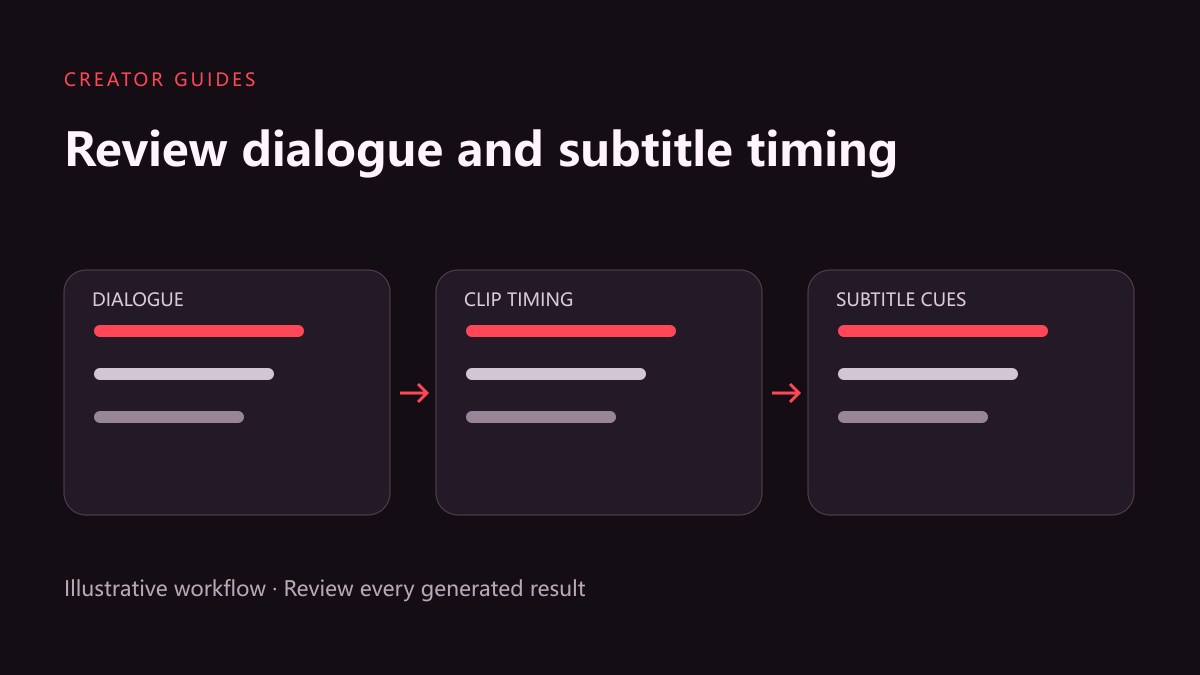
Review the sound before preparing subtitles
A saved script describes what you intend a character to say. Generated audio is what the viewer actually hears. Listen to the clip before approving it, because speech can be changed, omitted or assigned to an unexpected speaker. Native sound generation can also contain ambience rather than a perfectly isolated voice track.
Use a short, clear line when testing a scene. If a complex exchange is unreliable, revise the shot and dialogue instead of treating a longer prompt as an automatic solution. This guide uses invented examples and an illustrated timeline; it does not claim that the example audio has been generated or measured.
Separate speaker labels from spoken words
In a script, “Mara: Who left this here?” contains both a structural label and a spoken line. The intended speech is “Who left this here?” The character name before the colon should not automatically be pronounced. Stage directions such as “quietly” or “looking at the door” also describe delivery rather than dialogue.
A person's name can still be part of an intentional line, such as “Eli, wait.” Do not remove every occurrence of a name from dialogue. Review the distinction between a label and a word the character truly says, then listen to the generated result to confirm the model followed it.
Use the actual assembled timeline
Subtitle drafts use saved dialogue and clip timing. They are editable starting points, not a promise of automatic speech recognition. After merging, play the episode and compare each cue with the sound. Edit words that differ from the script and adjust start/end times where needed.
For an illustrative example, suppose clip A is 6.2 seconds and clip B is 5.8 seconds. A line that begins 0.9 seconds into clip B belongs at 7.1 seconds on the combined timeline. If it ends 2.4 seconds into clip B, the combined end time is 8.6 seconds. Those figures explain timeline offsets; use your own clip durations when editing a real episode.
Recheck captions after changing the video
Replacing, splitting or reordering clips can change the episode's timeline. A previously correct subtitle file may then point to the wrong moment. Finalize the clip order, check the current assembly and review the subtitle draft for that version before rendering again.
Keep cues comfortably readable. Avoid placing a whole conversation on screen at once, and leave time for the viewer to read each line. Check the result at the actual phone playback size rather than judging only from a large desktop preview.
Choose editable subtitles or a burned-in export
SRT and VTT files keep subtitle timing editable in compatible players and editing tools. A burned-in subtitle video puts the text into the picture, which is useful when a destination does not reliably support separate captions. Review the rendered file as well as the switchable preview; they are different delivery formats.
If a render is finished but transfer to storage fails, query or recover the saved task. Repeatedly creating a new render may use more allowance and incur additional provider costs. Checking the same saved job is a recovery step, not a new creative submission.
Balance optional music against the dialogue
A music bed should leave speech understandable. In the supported desktop browser workflow, select a music file you have permission to use, start at a modest level, and compare quiet and loud sections. Keep the page open until local export completes, then download and play the output file.
The browser mixing feature does not upload the selected music file. Downloaded files still need your own storage and rights checks. If a browser cannot produce the required format, retain the original episode and subtitle files for another supported editing workflow.
Before publishing, inspect the beginning, every scene transition and the ending. Listen for unintended names or directions, check subtitle boundaries, verify the final frame and save the approved version. See subtitles and export, or return to the storyboard guide.