
Dialogue, subtitles and episode export
Review generated sound, edit subtitle timing, merge short drama clips, and prepare a cover or local background-music export.
Last updated: 2026-11-06
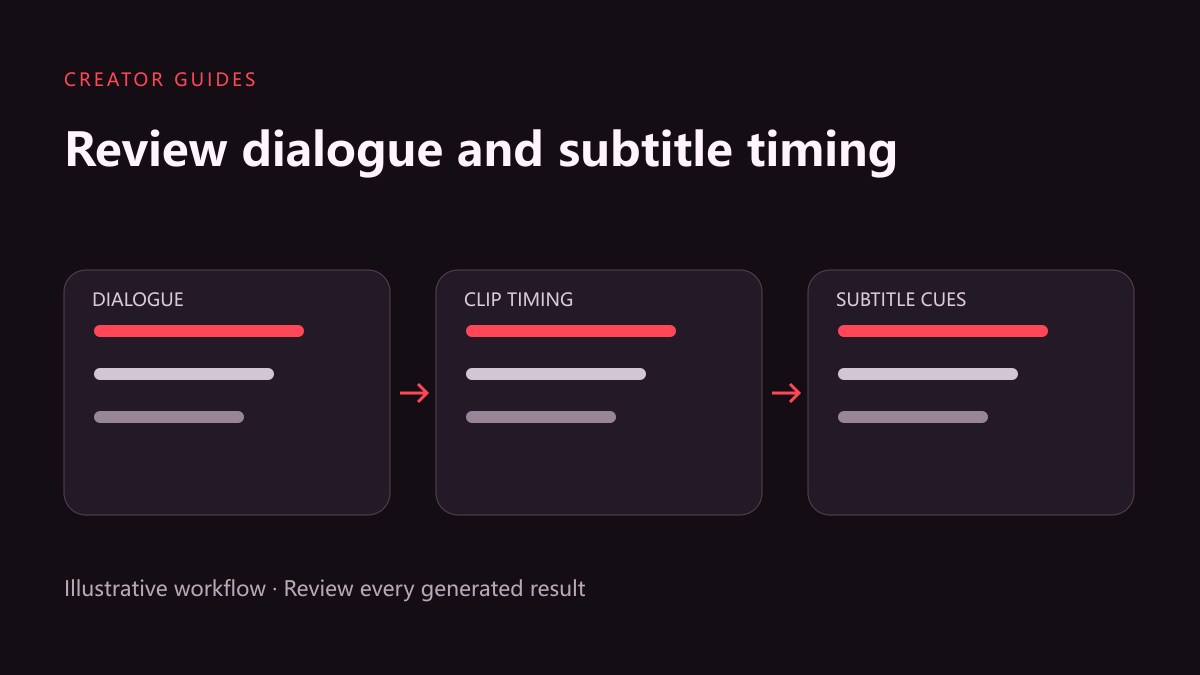
Deliver a reviewed episode
An assembled video still needs a final check. Listen to dialogue, compare subtitles with the actual sound, inspect scene transitions and download the version you want to keep. The workspace brings these delivery steps together while keeping each result reviewable.
Sound and subtitles serve different jobs
Sound-enabled video generation can include dialogue and ambience. The spoken result may differ from the saved script, so listen before accepting it. Speaker labels and stage directions help organize a script, but they should not become words spoken by a character.
Subtitle drafts are based on saved dialogue and actual clip timing. They are editable drafts, not a claim of word-perfect speech recognition. Adjust text and cue start/end times to match what the viewer hears. You can download SRT or VTT files and render a version with subtitles burned into the picture.
Assemble first, then verify the timeline
- Finish the clips and merge them in the intended order.
- Review the full episode and note any changed dialogue or gaps in sound.
- Generate or edit subtitle cues against that assembled version.
- Preview the cues, then render and check the exported subtitle video.
- If a completed render has not yet been saved, recover that task's result before submitting a new render.
Replacing or reordering clips changes the relationship between captions and video. Review or recreate the subtitle draft after those changes instead of assuming an older timing file still fits.
Cover and optional local music
Create a cover from a chosen frame. In a supported desktop browser, you can also select an audio file for local mixing. Use music you have permission to include, keep the page open and download the completed file. The local mixing feature does not upload your selected music file.
Read the dialogue and subtitles tutorial, return to storyboard planning, or open the workspace.